Exporting an SSL Certificate in Google Chrome
2 minute read
This section provides detailed information about exporting an SSL certificate in Google Chrome:
-
from AWS S3, as instructed in Communication Errors When Sending Content for Translation
-
from the Clay Tablet License Server, as instructed in License Keys not Displayed
To export an SSL Certificate in Chrome:
-
In the Chrome browser, go to one of the following URLs:
-
To resolve communication errors with the Clay Tablet License Server, use
https://api.clay-tablet.net/license/v1. -
To resolve communication errors with AWS S3, use https://ct_test_create_key.s3.amazonaws.com.
-
The page opens.
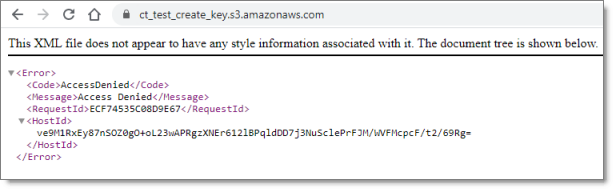
Note: Ignore the Access Denied error message in the page that opens.
- Click the padlock in the address bar.
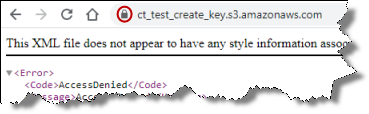
The Connection is secure dialog box opens.
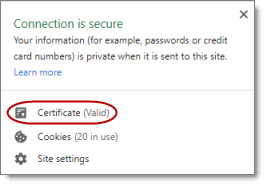
- Click Certificate.
The Certificate dialog box opens, displaying the General tab.
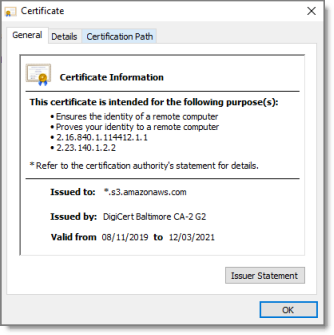
- Click the Details tab to view it.
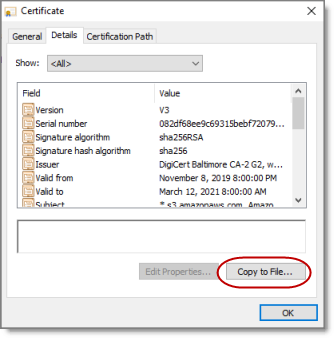
- Click Copy to File.
The Certificate Export Wizard opens.
- Click Next.
The Export File Format page of the wizard opens.
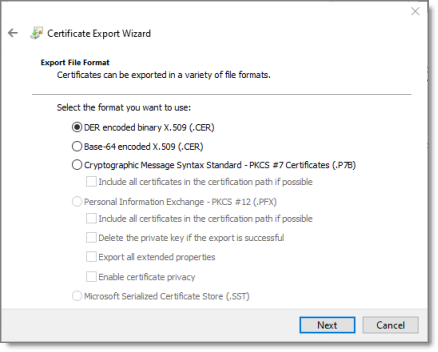
- Accept the default format of DER encoded binary X.509, and click Next.
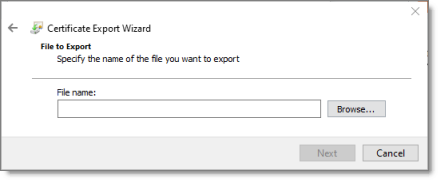
The File to Export page of the wizard opens.
-
Do one of the following:
-
In the File name text box, enter the path and name of the file in which you want to save the certificate. The file has a .cer extension. For example, enter C:\Users\jsmith\Documents\SSL certificates\AWS S3.cer.
-
Click Browse, and in the Save As dialog box:
-
Navigate to the folder where you want to save the file.
-
Assign a filename with a .cer extension.
-
Click Save.
-
-
-
When you are done, click Next.
The Completing the Certificate Export Wizard page opens, displaying the filename, path and format.
-
Click Finish to close the wizard.
The Certificate Export Wizard message box states that the export was successful.
-
Click OK to close the Certificate dialog box.
-
Next, you do one of the following:
-
To resolve communication errors with the Clay Tablet License Server, you import the exported SSL certificate into your Chrome certificate store. For detailed instructions, see Importing an SSL Certificate into Your Chrome Certificate Store.
-
To resolve communication errors with AWS S3, you import the exported SSL certificate into Your Java Trusted Keystore. Do one of the following:
-
If Java (JDK) is installed on the server where Adobe Experience Manager is hosted, follow these instructions: Importing an SSL Certificate into Your Java Trusted Keystore with Java (JDK).
-
If JRE is installed on the server where Adobe Experience Manager is hosted, follow these instructions: Importing an SSL Certificate into Your Java Trusted Keystore with JRE.
-